How to Add a Manager to Your Google Business Profile
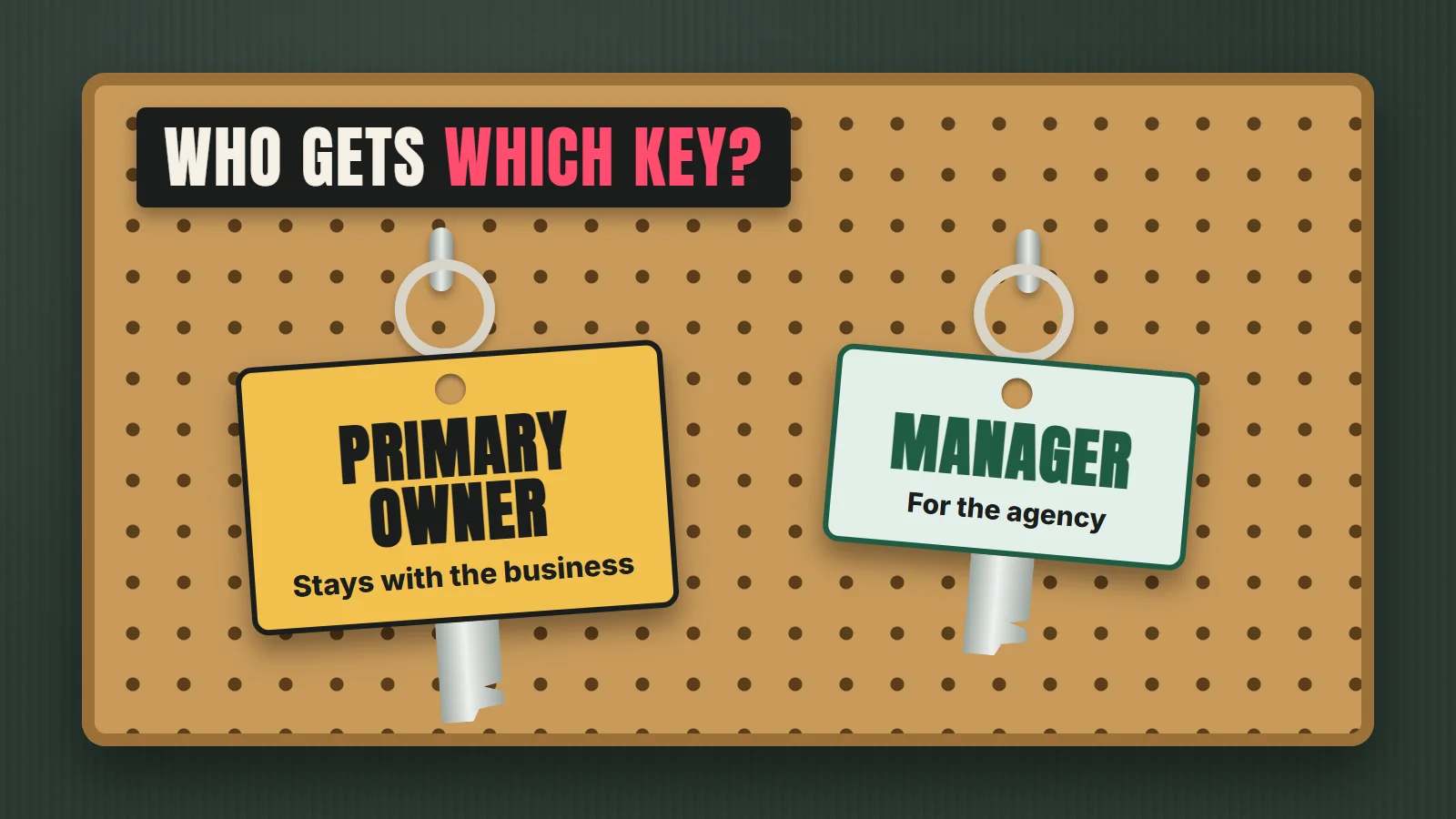
A landscaping company owner in Smithtown signs with a new marketing agency on a Monday. On Tuesday the agency emails her and asks for the Gmail login that runs her Google listing, so they can get started. She doesn’t want to say no, and she doesn’t want to hand over the business either. How do you add a manager to your Google Business Profile without giving away ownership? Open your profile, go to People and access, select Add, type in the agency’s email and choose Manager. You stay the primary owner. A manager can edit the listing and answer reviews, but Google doesn’t let a manager add or remove users, and a manager can’t remove the profile.
Access is one of the first things we set up in our SEO for Long Island, New York service businesses, because the wrong seat is hard to take back later. Everything below comes from Google’s help pages, quoted word for word. Where something is our opinion, we say so. This post is about handing out access while the profile is still yours. Getting a profile back from someone who already holds it is a separate process, and we don’t cover it here.
What's the difference between an owner and a manager?
Google has two roles on a Business Profile: owner and manager. One of the owners is the primary owner, and there is only one of those at a time. Google describes the owner role like this: As the owner, you have full control over the profile. You can add or remove users, manage profile info, and even delete the profile.
Managers used to be called site managers. Google’s page says managers can do almost everything owners can. The two things they can’t do are add or remove users and remove the profile. Think of the Manager seat as a valet key. It can drive the car. It can’t sign the car over to someone else.
Our drawing and our advice on who sits where. Roles from Google Business Profile Help, "Manage your Business Profile owners & managers."
What can a manager change on your listing?
A lot more than most owners expect. Google’s help page has a table of what each role can do. We grouped its rows below. Only two rows differ.
Our grouping. Source: Google Business Profile Help, "Manage your Business Profile owners & managers," table "Owner & manager capabilities."
Read the Manager column slowly. A manager can change your business name and your category, and a manager can close a location. So Manager is not a harmless seat. Give it only to people you would trust with a key to the shop. What a manager can’t do is lock you out. If a manager makes a mess, you’re still on the profile to clean it up and to remove them.
One row matters if you advertise. Managers can manage Google Ads account links. So if an agency runs your Google Ads, the Manager seat is enough for them to connect your profile to your ads. In our view, the ads account should be in the business’s name too.
Why shouldn't your agency be an owner?
Because an owner can take the top seat. Google’s page on transferring ownership says it in one short line: Please note, Co Owners upgrade themselves to Primary Owners.
As we read that, any owner you add can make themselves the primary owner. Google’s security page gives the same warning in plainer words: Please note that owners can edit and transfer ownership of your business, so add them with extra care.
The primary seat is the one that can wipe the listing clean. Google says Only the primary owners can remove the profile content and managers.
And it doesn’t come back: Removal of content and managers for a Business Profile is permanent and affects all owners and managers.
- It can add and remove people on your profile.
- Google says co owners can upgrade themselves to primary owner.
- As primary owner, it can remove the profile's content and managers. Google says that's permanent.
- It does the daily work: hours, posts, photos, review replies.
- It can't add or remove people, and it can't remove the profile.
- You stay primary owner and can remove the agency any day you choose.
Our drawing. Sources: Google Business Profile Help, "Transfer primary ownership of a Business Profile," "Remove a Business Profile from your Google Account" and "Help protect your Google Business Profile."
Google’s rules for agencies put the choice in your hands: Businesses have the right to determine whether a partner should have a Co-Owner, Manager, or no access at all.
We’d choose Manager every time. The primary owner should be a Google Account that belongs to the business, and nobody outside the business should hold an owner seat. If you want a second owner as a backup, make it a business partner you’d trust with the whole company, because of that upgrade rule.
How do you add a manager to your Google Business Profile?
Sign in with the Google Account that owns the profile first. Each person you add needs their own Google Account, so ask the agency or employee which email address to use. Then follow Google’s steps:
- Go to your Business Profile.
- Select More, then Business Profile settings, then People and access.
- At the top left, select Add.
- Enter the person's email address.
- Under Access, select Manager. This is the step that keeps ownership with you.
- Select Invite.
Source: Google Business Profile Help, "Manage your Business Profile owners & managers." Button names can change.
The person isn’t on your profile until they accept. Until then, the invite sits on the same page, and Google explains how to pull it back: To cancel an invite, under the “PENDING” section, find the user and select Cancel invitation.
If you can’t find the Add button on your computer, Google says If the option to add an owner or manager in your browser isn’t available, check if it’s available in the Google Maps mobile app.
Some agencies ask for access from their side instead, and you get an email asking you to approve them. Google’s security page is clear about those: Do not approve those requests unless you know the individual requesting access.
If you didn’t expect the email, don’t click it. Send the invite yourself from People and access.
And don’t send your password instead, even when it feels faster. Google’s account setup rule for agencies takes one line: Do not share passwords with your clients.
In our view, a password is worse than an owner seat. It opens your whole Google Account, not only the listing.
One timing note. Google makes every new owner and manager wait 7 days before a few actions, such as removing other users or transferring primary ownership. Posts, photos and review replies aren’t on that list.
What should you agree on before an agency gets in?
Get these in writing before you send the invite. Most of them come straight from Google’s own rules for agencies, so a good agency will agree without a fight.
- Their seat is ManagerYou stay primary owner, in a Google Account the business controls. That's our rule, and Google's policy lets you set it.
- Your OK on review repliesGoogle's policy says
To respond to reviews on behalf of the end customer, you must have an explicit approval. Verbal consent isn't sufficient.
- Reports you can readGoogle tells business owners
You have the right to know your profile’s performance, such as how many users interact with, view, and click on your Business Profile.
- A fee you understandGoogle's policy says
If you charge a management fee, you must let end customers know that Business Profile is a service provided at no extra cost.
- A clean exitWhen the work ends, the agency takes itself off. Google tells agencies
If you no longer manage a profile, remove the profile from your account.
- No passwords, everEvery person who works on the listing uses their own Google Account and their own invite.
Sources: Google Business Profile Help, "Business Profile third-party policies" and "Tips for working with third parties to manage your Business Profile." The first and last items are our advice.
How do you remove a manager when the work ends?
From the same place. Go to People and access, select the person, and select Remove person. Only owners can do this, which is one more reason the agency shouldn’t be one. A manager can also leave on their own from that page by selecting Stop managing. Google says Once you stop managing the profile, you can no longer change business info.
The same goes for staff. Google’s security page says Remove ex-employees’ profile access if they no longer work at your business.
Our habit is to open People and access the day any job or contract ends, and to confirm the primary owner is still the business. Google’s tips page for working with outside companies sums up why that seat matters: Only profile owners can control who has access and can update permissions at any time.
That’s the setup we recommend whenever an outside team does local SEO work for a business: Manager for us, primary owner for the business. The Manager seat is also how an outside team adds new photos of your work to the listing. If you want short clips of finished jobs for your website and social pages, our video marketing team can make them, and you still decide what goes on your profile.
Sources: Google Business Profile Help, "Manage your Business Profile owners & managers," "Transfer primary ownership of a Business Profile," "Remove a Business Profile from your Google Account," "Help protect your Google Business Profile," "Business Profile third-party policies" and "Tips for working with third parties to manage your Business Profile." All checked November 27, 2026.
Send us your business name and the town you work in. We'll tell you which seat to give an agency or employee, what to check on People and access, and how your profile compares with the businesses that show up above you on the map. No charge, and no obligation. Or call or text 805.243.8321.
Get My Free Market AssessmentWith the right people in the right seats, SEO built on a profile you control has something solid to stand on.