How to Verify Your Google Business Profile (and What to Do When It Won't Verify)
A tree trimmer in Goleta finally sets up his Google Business Profile on a Sunday night. Google doesn’t offer him a postcard or a phone call. It asks for a video. He stands in his driveway, films his truck and his chipper for half a minute, and uploads it. Four days later the profile says “Review issues.” He films again, closer this time, and gets the same answer. How do you verify a Google Business Profile? You use whichever method Google offers your profile, because you can’t choose, and if it’s a video you show three things on camera: where the business is, that it exists, and that you run it. Google’s own examples of rejected videos each miss one of the three.
Verification is the first thing we look at when a new client says they’re invisible on Maps. As an SEO agency in Santa Barbara, we find a stalled verification behind that more often than you’d think, and it’s usually fixable in an afternoon. Below is what Google’s own help pages say about each method, the video, and what to do when it keeps failing, quoted word for word. Where something is our opinion, we say so.
Why can't you choose how Google verifies you?
Because Google decides. Its verification page puts it in a box marked important: Verification methods are automatically determined by Google and can’t be changed.
The same page says The verification options available to you depend on your business type, public info, region, or business hours. In some cases, you may need to verify your business with more than one method.
So two businesses on the same street can get different options. A shop with a long history online might be offered a phone call. A brand new service business with no website might only see the video. Neither owner did anything wrong. And it matters, because until you verify, you can’t fix what Google shows. Google’s page opens with it: To edit your business info on Google, such as business name or business hours, and interact with customers, you need to verify your business.
- MethodHow it worksWatch for
- Video recordingYou film a single unedited clip on your phone through the profile and upload it for review.At least 30 seconds, live, no breaks. Most of this post is about it.
- Phone or textGoogle calls or texts a code to the business number. You enter it on the profile.A phone menu can't take the call. Answer it yourself.
- EmailGoogle sends steps to the address shown on the verification screen.You need access to that exact inbox.
- Live video callA support rep walks you through showing the business on camera.Only during your business hours, and not offered to everyone.
- MailA postcard with a 5-digit code goes to your address.Don't edit the profile or request a second card while you wait.
- InstantSometimes no step at all, if your website is verified in Search Console or you verify in bulk.Not something you can request. It happens or it doesn't.
Our summary. Source: Google Business Profile Help, "Verify your business on Google" and "Verify your business with a video recording."
Google’s own advice is to take the video if it’s offered: If your business is eligible for video verification, we recommend that you use this option.
What happens after you hit submit?
A wait, then one of three outcomes. Google says verification reviews take up to 5 business days. On rare occasions, reviews may take longer.
We drew the whole path below.
- 1. You askSign in, open the profile, select Get verified.
- 2. Google picksVideo, phone, text, email, live call or postcard, based on your business.
- 3. Someone reviewsUp to 5 business days. Postcards take longer to arrive first.
- VerifiedA confirmation email arrives. Now you can edit everything.
- Review issuesYour video wasn't accepted. Google tells you what was missing.
- Get verified, againGoogle couldn't fully verify you. Try again or try another method.
Drawn from Google Business Profile Help, "Verify your business on Google," including its section "Fix verification issues or re-verify your business."
Google spells out what the last two mean. On the button: When the “Get verified” button appears on your Business Profile again, it means Google couldn’t completely verify your business.
On the notice: When you verify through a video recording and get a “Review issues” notification, it means your video wasn’t accepted.
If the postcard is your route, two rules from the same page save weeks. Do not edit your business name, address, or category on your Business Profile. If you do, the code we sent you won’t work.
And Do not request a new code. If you do, we invalidate the code in the mail and send a new one.
Google says Most codes arrive within 14 days
and Verification codes expire after 30 days.
How do you record a verification video that passes?
Plan it before you press record. Google is strict about the format: You must capture the footage live as pre-recorded videos aren’t allowed, and you can’t record it offline and upload it later.
The video has to be An unedited, unique, and complete recording with no breaks.
It has to be At least 30 seconds long.
And it has to be recorded and uploaded from a phone through the profile itself. It must not include Sensitive info like bank account, tax, or ID numbers.
or Other people’s faces.
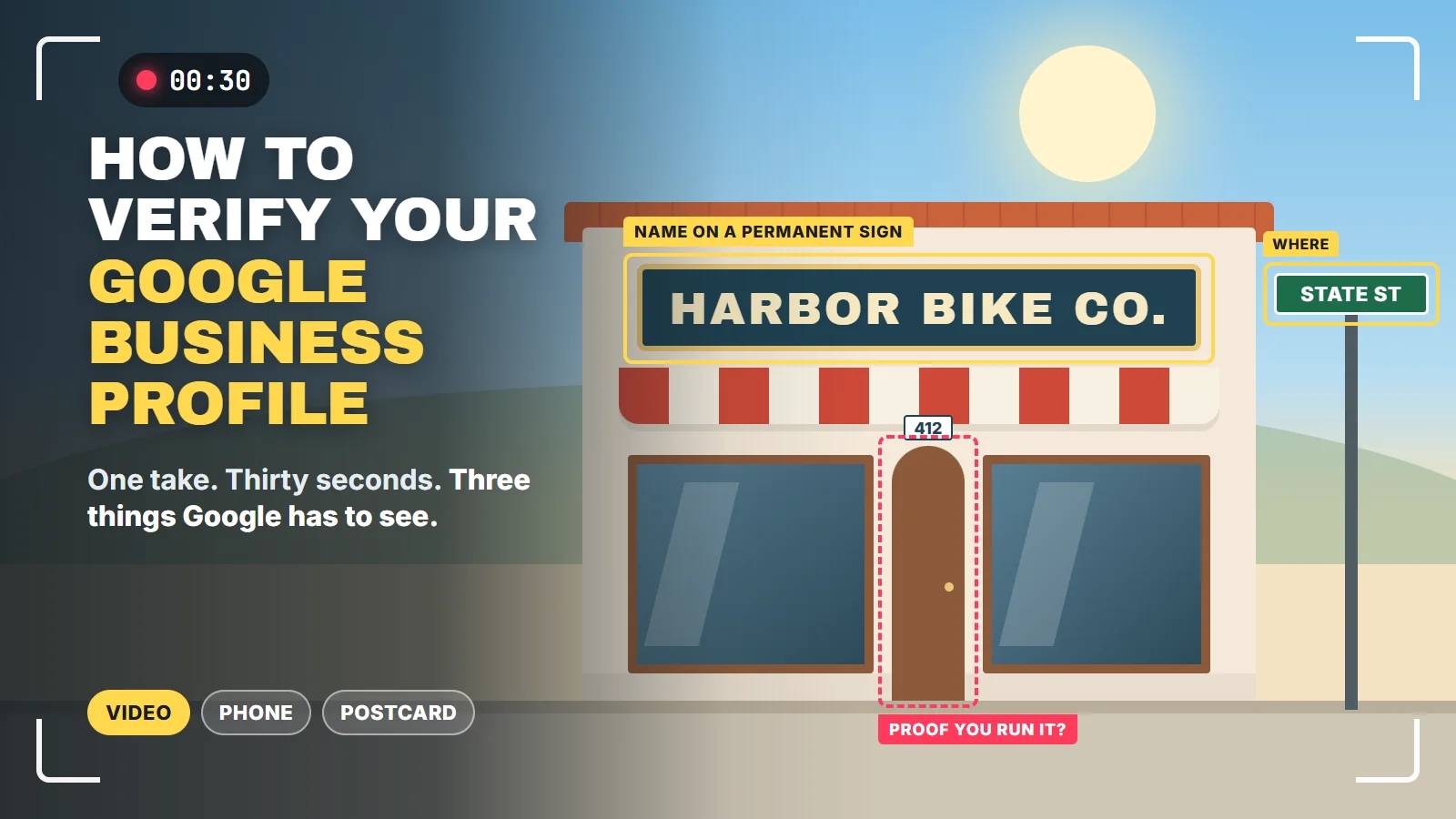
Inside those thirty seconds, Google wants three shots. For a storefront, we’d film them in this order, walking from the street to the back room without stopping:
- Street sign and the building number
Where you areGoogle asks for
street signs, building numbers, nearby businesses, or familiar places around your business.
- Your name on the sign
That you existThe name has to be on
a permanent fixture, like a signboard, wall, or window
, and match the profile. - Keys in the back door
That you run itGoogle suggests
opening a cash register, kitchen, storage room, or using a point-of-sale system.
Source: Google Business Profile Help, "Verify your business with a video recording," storefront and hybrid requirements.
The second shot is the easy one to get wrong. A paper sign taped in the window isn’t a permanent fixture. And if the sign says “Joe’s Auto” while the profile says “Joe’s Auto Repair and Tires Santa Barbara,” the video can’t match a name that was stuffed with keywords in the first place. Fix the profile name before you film. Google’s line is plain: The name shown in your video must match the name on your Business Profile.
One more thing. This is not a marketing video. No music, no cuts, no drone shot. If you want a polished film of your shop for your website, that’s a separate job and a good one for video marketing, but keep it far away from the verification upload.
What does a service-area business show on camera?
The same three things, with no storefront to point at. Google defines the type: A service-area business goes to customers or offers services but doesn’t serve them at its business address. For example, a locksmith or a plumber.
Our tree trimmer from the top of this post is one.
- Where you operate. Google asks you to
record street signs, nearby landmarks, or other identifiers at your business address. Avoid filming empty land or locations without clear markers.
If you work from home, Google’s tip is that youcan record landmarks and signs in your immediate neighborhood to verify the address.
Walk to the corner and film the street sign. - That the business exists. Show
the professional tools, equipment, or products you use for work.
Google lists business cards and branded apparel as examples. The chipper counts. So does the shirt with your logo. - That you run it. Google suggests
unlocking a van that has your business branding
, or showinga business permit, invoice, or utility bill that matches the name on your Business Profile.
Keep account numbers out of frame.
Here’s where we think the tree trimmer went wrong. He filmed the truck and the chipper in the driveway, which covers the second shot, but never showed a street sign or anything with his business name on paper. Two of three. The fix is a walk to the corner, the truck, then the business license on the dash, all in one take.
One rule service businesses miss before they ever get to the video: If you don’t serve customers at your business location, do not add your business address to your Business Profile.
Google’s service area page says the same thing. You still verify at the address. You just keep it off the public profile.
Why does Google keep rejecting the verification?
Google gives the reasons when it sends a video back. Its own examples are the first three rows below. The rest come straight from the requirements on Google’s pages, matched with what to change.
- Business name not visible on storefront.Film the permanent sign up close, and make sure it matches the profile name.
- No nearby area shown.Start at the street sign or building number, then walk to the business without stopping.
- Missing proof of authorization to operate the business.Unlock something only staff can open, or show a permit or bill with the business name.
- Video was pre-recorded or editedRecord it live inside the profile on your phone, in one take.
- A customer's or employee's face is in itFilm when nobody is around, or keep the camera on the building and equipment.
- Phone code never arrivedGoogle says
Interactive Voice Response (IVR) systems won’t get the code.
Answer the line directly or use text. - Postcard code stopped workingSomeone edited the name, address or category, or asked for a new card. Wait for the latest one and change nothing.
- The business isn't eligibleOnline-only shops and virtual offices aren't eligible, and P.O. boxes aren't acceptable addresses. No video fixes that.
Sources: Google Business Profile Help, "Verify your business with a video recording," "Verify your business on Google" and "Guidelines for representing your business on Google."
That last row deserves a sentence. Google’s video page says that if a business operates online-only, like e-commerce shops with a virtual storefront, and doesn’t offer any in-person services, you’re not eligible for a Business Profile and can’t be verified.
Its guidelines say a rented mailing address you don’t work from isn’t eligible for a Business Profile.
If that’s you, the answer is regular SEO and your own website, not a better video.
What do you do when the profile still won't verify?
Work through Google’s own order of operations. Don’t skip to support, because Google says support goes faster once you have: try to verify your business with the available verification methods first. This makes it easier for us to provide assistance.
- Read the review issuesOn your phone, open the profile and tap Review issues. Google lists what the first video was missing.
- Re-record everything, plus the missing pieceGoogle says the new video must include
All the info you showed in your first video.
andAll the missing info needed to meet the requirements.
Don't send a clip of only the part you missed. - Try another method if one is offeredGoogle says
If your Business Profile shows multiple verification options, you can try other verification methods.
A live video call is worth trying if it appears, during your posted hours. - Then contact supportGoogle's own words on the live call and the postcard:
If you’re still unable to verify your business, contact support.
Have your proof ready: the sign, a permit, a bill in the business name.
Source: Google Business Profile Help, "Verify your business with a video recording" and "Verify your business on Google."
Two things not to do while you’re frustrated. Don’t make a second profile to start fresh; Google’s guidelines say There should only be one profile per business
. And don’t hand the code to anyone. Google says Google will never ask for your verification code.
A caller who claims to be from Google and asks for it is trying to take your listing.
If you verified once and Google asks again, it’s usually because something changed. Google’s video page says changes to your business info may require re-verification.
New phone number, new address, new name: expect to film again.
Should your agency verify the profile for you?
No. You verify it, then you add them. Google’s page says If a third party helps you manage your profile, you can add them to your profile after verification
. The owner stays the owner, and the agency gets a manager seat it can lose when you part ways.
We bring this up because of what we find when we take over accounts: profiles verified under a past agency’s Google account, with the business owner nowhere on it. That’s BSEO, and BSEO is you not knowing what you bought. Verifying in your own account takes thirty seconds of film. Getting a profile back from someone else takes much longer.
Once you’re verified, the real work starts. Verification gets you the right to edit the profile. Ranking it is local SEO: categories, service areas, reviews, and a website that agrees with all of it. And in our view, those same details are what Google’s AI answers have to work with when someone asks about a business like yours, which is where AI search visibility comes in.
Sources: Google Business Profile Help, "Verify your business on Google," "Verify your business with a video recording," "Add or claim your Business Profile," "Manage your service areas for service-area & hybrid businesses" and "Guidelines for representing your business on Google." All checked November 11, 2026.
Send us your business name and what your profile shows today: Get verified, Review issues, or nothing at all. We'll tell you which method Google is likely to accept, what your video needs to show, and how your profile stacks up against the businesses that already rank. No charge, and no obligation. Or call or text 805.243.8321.
Get My Free Market AssessmentA verified profile is the ticket in, and SEO that keeps it working is what fills the phone.